
Arduino PWM (Pulse Width Modulation) demonstrates the use of the analogWrite( ) function of Arduino library in fading an LED off and on. This can be done by turning a digital pin on and off very quickly with different ratio between on and off, to create a fading effect.
CONCEPTS
What is Pulse Width Modulation or PWM?
Although digital devices cannot generate a pure analog signal. Therefore, we use this technique called Pulse Width Modulation or PWM. Digital control is used to create a square wave, a signal switched between ON and OFF. In short, the pattern can simulate voltages in between full ON(5V) and Full OFF(0V). In this project, we are going to fade an led connected to one of the PWM pins of the Arduino Board.

In the graphic above, the vertical dotted lines represent a regular time period. This duration or period is the inverse of the PWM frequency. In other words, with Arduino’s PWM frequency at about 500Hz, the green lines would measure 2 milliseconds each. A call to analogWrite() is on a scale of 0 – 255, such that analogWrite(255) requests a 100% duty cycle (always on), and analogWrite(127) is a 50% duty cycle (on half the time) for example.
Once you get this example running. For instance, grab your Arduino and shake it back and forth. What you are doing here is essentially mapping time across space. To our eyes, the movement blurs each LED blink into a line. As the LED fades in and out, those little lines will grow and shrink in length. Now you are seeing the pulse width.
The table below shows PWM pins with Frequency on various Arduino Boards
| BOARD | PWM PINS | PWM FREQUENCY |
| Uno, Nano, Mini | 3, 5, 6, 9, 10, 11 | 490 Hz (pins 5 and 6: 980 Hz) |
| Mega | 2 – 13, 44 – 46 | 490 Hz (pins 4 and 13: 980 Hz) |
COMPONENTS
- Arduino Uno – 1 | purchase
- LED – 1 | purchase
- Resistor 220/470 ohm – 1 | purchase
- Breadboard – 1 | purchase
- Connecting Wires as required | purchase
CONNECTIONS
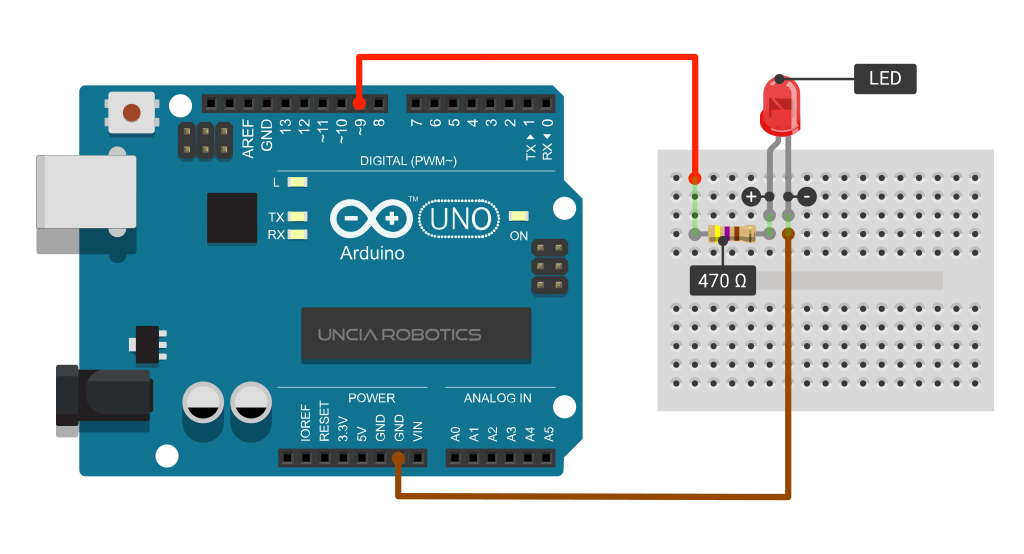
Connect the anode (the longer, positive leg) of your LED to digital output pin 9 on your board through a 470-ohm resistor. Connect the cathode (the shorter, negative leg) directly to the ground.
PROGRAM
/*UNCIA ROBOTICS | www.unciarobotics.com
  PROGRAM: ARDUINO LED FADING USING PWM PIN
  Fades a Light Emitting diode connected on PIN 11 of Arduino
  Using PWM (Pulse width Modulation)

  Connections:
  9     LED(+)
  GND   LED(-)
*/

int ledPin = 9;     //LED connected to digital pin 9
void setup() {
}

void loop() {
  //to increase the brightness from minimum to maximum
  for (int inc = 0; inc <= 255; inc += 5) {
    analogWrite(ledPin, dec);
    delay(30);
  }

  //to decrease the brightness from maximum to minimum
  for (int dec = 255; dec >= 0; dec -= 5) {
    analogWrite(ledPin, dec);
    delay(30);
  }
}
FUNCTIONS USED
void setup( )
This function is called when a sketch starts. You can use to initialize variables, pin modes, start using libraries, etc. This function will only run once, after each power-up or reset of the Arduino board.
void loop ( )
This function is called just after calling setup(). As the name suggests this function actively controls the Arduino board by looping consecutively.
analogWrite ( )
Description: Writes an analog value (PWM) to the pin. You can use it to change the brightness of an LED or vary the speed of the motor. After calling analogWrite function, the PWM PIN generates a rectangular wave of specified duty cycle.
| PWM Pins | Frequency |
| 3, 5, 6, 9, 10, 11 | 490 Hz (pins 5 and 6: 980 Hz) |
Syntax: digitalWrite (pin,VALUE);
- pin: the Arduino PIN number. | Allowed data types: int
- value: a range of values between 0 (Lowest voltage) to 255(Highest Voltage). | Allowed data types: int
Returns: Nothing
Notes and Warnings:
- In Arduino Uno, the output resolution lies between 0 to 255.
- Above all there is no need to set pinMode() before using analogWrite( ). The analogWrite( ) function has nothing to with analog pins or analogRead( ).
- Pin 5 and 6 can have a higher-than-expected duty cycle because of delay() and millis( ) as they share the same timer which is used to generate PWM outputs.
delay ( )
Description: Pauses the program for the amount of time (in milliseconds) as specified inside the bracket. (1sec = 1000 ms).
Syntax: delay (ms);
- ms: the number of milliseconds to pause. Allowed data types: unsigned long
Notes and Warnings:
- While it is easy to use delay function for short pauses in a program, the use of delay() has significant drawbacks. No other reading of sensors, mathematical calculations, or pin manipulation can go on during the delay function, so in effect, it brings most other activity to a halt.
- Certain things do go on while the delay function is controlling the Atmega chip, however, because the delay function does not disable interrupts. Serial communication that appears at the RX pin is recorded, PWM (analogWrite) values and pin states are maintained.
FAQ’s
Why LED is not Fading after increasing the parameter delay( ) function?
Its because the signal we are generating is rectangular wave and if timings and frequency is not proper you can get different results. So try to play around with timings or use the ones which are given in the program above.
How to identify Positive(anode) and Negative (cathode) of an LED?
There are two Ways to identify this
- Check the legs of an LED. Positive Leg is always longer than the Negative
- Check the Flags inside the LED. Bigger Flag is Negative and smaller one is positive.

Still, having doubts?
Ask your questions in comment section below or Contact us.


