Prints data to the serial port as human-readable ASCII text. This command can take many forms. Numbers are printed using an ASCII character for each digit. Floats are similarly printed as ASCII digits, defaulting to two decimal places. Bytes are sent as a single character. Characters and strings are sent as-is. For example-
Serial.print(78) gives “78”Serial.print(1.23456) gives “1.23”Serial.print('N') gives “N”Serial.print("Hello world.") gives “Hello world.”An optional second parameter specifies the base (format) to use; permitted values are BIN(binary, or base 2), OCT(octal, or base 8), DEC(decimal, or base 10), HEX(hexadecimal, or base 16). For floating-point numbers, this parameter specifies the number of decimal places to use. For example-
Serial.print(78, BIN) gives “1001110”Serial.print(78, OCT) gives “116”Serial.print(78, DEC) gives “78”Serial.print(78, HEX) gives “4E”Serial.print(1.23456, 0) gives “1”Serial.print(1.23456, 2) gives “1.23”Serial.print(1.23456, 4) gives “1.2345”You can pass flash-memory based strings to Serial.print() by wrapping them with F(). For example:
Serial.print(F("Hello World"))
To send data without conversion to its representation as characters, use Serial.write()
SERIAL_5N1
SERIAL_6N1
SERIAL_7N1
SERIAL_8N1 (the default)
SERIAL_5N2
SERIAL_6N2
SERIAL_7N2
SERIAL_8N2
SERIAL_5E1: even parity
SERIAL_6E1
SERIAL_7E1
SERIAL_8E1
SERIAL_5E2
SERIAL_6E2
SERIAL_7E2
SERIAL_8E2
SERIAL_5O1: odd parity
SERIAL_6O1
SERIAL_7O1
SERIAL_8O1
SERIAL_5O2
SERIAL_6O2
SERIAL_7O2
SERIAL_8O2
Used for communication between the Arduino board and a computer or other devices. All Arduino boards have at least one serial port (also known as a UART or USART), and some have several.
| BOARD | USB CDC NAME | SERIAL PINS | SERIAL1 PINS | SERIAL2 PINS | SERIAL3 PINS |
|---|---|---|---|---|---|
Uno, Nano, Mini | 0(RX), 1(TX) | ||||
Mega | 0(RX), 1(TX) | 19(RX), 18(TX) | 17(RX), 16(TX) | 15(RX), 14(TX) | |
Leonardo, Micro, Yún | Serial | 0(RX), 1(TX) | |||
Uno WiFi Rev.2 | Connected to USB | 0(RX), 1(TX) | Connected to NINA | ||
MKR boards | Serial | 13(RX), 14(TX) | |||
Zero | SerialUSB (Native USB Port only) | Connected to Programming Port | 0(RX), 1(TX) | ||
Due | SerialUSB (Native USB Port only) | 0(RX), 1(TX) | 19(RX), 18(TX) | 17(RX), 16(TX) | 15(RX), 14(TX) |
101 | Serial | 0(RX), 1(TX) |
UART (Universal Asynchronous Receiver / Transmitter) is the part of the circuit responsible for serial communication. In particular, a UART acts as an interface between serial and parallel communications. In fact, on one side we will have an 8-line bus for parallel communication and on the other side two serial outputs RX and TX.
Description: Reads the value from a specific analog Pin. Arduino boards contain multichannel ADC (Analog to Digital) converter. Furthermore, It has 10 bits of default resolution. For this reason, if you provide 5 Volts of power supply it can divide it into 1024 steps of 0.004.9V or 49 mV each. Below is the list of analog pins in case of Arduino, Nano and Mini.
| Board | PWM Pins | Resolution |
| Arduino Uno | A0, A1, A2, A3, A4, A5 | 10 Bit |
| Mini, Nano | A0, A1, A2, A3, A4, A5, A6, A7 | 10 Bit |
Syntax: analogRead (pin);
Returns: Analog reading on the pin | Allowed data type: int
Notes and Warnings:
Description: Configure specific pin to behave either as input or output.
Syntax: pinMode (pin,MODE);
Returns: Nothing
Notes and Warnings:
const is an abbreviation for the word constant. It’s a Variable qualifier which makes any variable read-only. You can use it like any other variable but you cannot change its value in the program. It’s a good practice to name your pins using a constant qualifier.
Description: Write a HIGH or LOW value to a digital pin.
Syntax: digitalWrite (pin,VALUE);
Returns: Nothing
Notes and Warnings:
Description: Reads digital values from digital pins.
Syntax: digitalRead (pin);
Returns: HIGH or LOW
Notes and Warnings:
Description: Starts Serial communication at a given baud rate. To communicate with computer you can use these baud rates: 300, 600, 1200, 2400, 4800, 9600, 14400, 19200, 28800, 38400, 57600, or 115200. You can, however, specify any other baud rate connected at TX and RX pins of Arduino
Syntax: Serial.begin(baud); or Serial.begin(baud, config);
Returns: Nothing
Notes and Warnings:
Serial.begin(9600); Serial1.begin(38400);
Serial2.begin(19200); Serial3.begin(4800);
FTDI stands for Future Technology Devices International. It is a private company which manufactures and design chips which can convert RS-232 or TTL Serial Transmission to USB signals and allow support for legacy devices with modern computers.
Description: Pauses the program for the amount of time (in milliseconds) as specified inside the bracket. (1sec = 1000 ms).
Syntax: delay (ms);
Notes and Warnings:
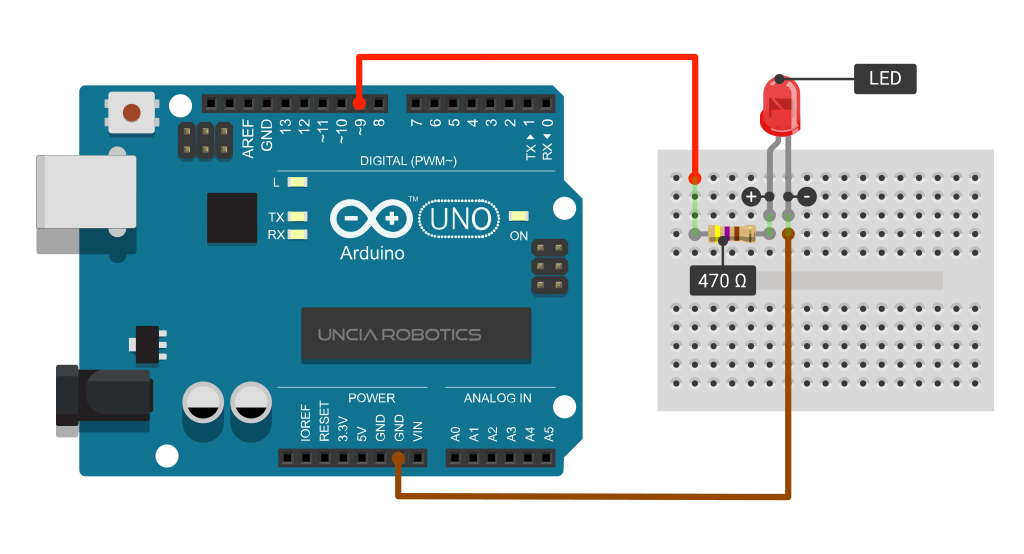
Description: Writes an analog value (PWM) to the pin. You can use it to change the brightness of an LED or vary the speed of the motor. After calling analogWrite function, the PWM PIN generates a rectangular wave of specified duty cycle.
| PWM Pins | Frequency |
| 3, 5, 6, 9, 10, 11 | 490 Hz (pins 5 and 6: 980 Hz) |
Syntax: digitalWrite (pin,VALUE);
Returns: Nothing
Notes and Warnings:
Data Types refer to a System used by the programming language for declaration of variables and functions of different types. In Arduino Microcontroller we use the following Data Types.
| void | Boolean | char | Unsigned char | byte | int | Unsigned int | word |
| long | Unsigned long | short | float | double | array | String-char array | String-object |
PWM or Pulse Width Modulation is used to create a rectangular pulse wave, a signal switched between ON and OFF. This ON and OFF pattern can simulate voltages in between full ON(5V) and Full OFF(0V). The resultant Voltage is called Duty Cycle.
In the graphic below, the vertical dotted lines represent a regular time period. This duration or period is the inverse of the PWM frequency. In other words, with Arduino’s PWM frequency at about 500Hz, the green lines would measure 2 milliseconds each. A call to analogWrite() is on a scale of 0 – 255, such that analogWrite(255) requests a 100% duty cycle (always on), and analogWrite(127) is a 50% duty cycle (on half the time).

Once you get this example running, grab your Arduino and shake it back and forth. What you are doing here is essentially mapping time across space. To our eyes, the movement blurs each LED blink into a line. As the LED fades in and out, those little lines will grow and shrink in length. Now you are seeing the pulse width.